
VisualStudioCode: Difference between revisions
| (12 intermediate revisions by the same user not shown) | |||
| Line 1: | Line 1: | ||
==Concept== | ==Concept== | ||
Visual Studio Code ( | Visual Studio Code (VSC) | ||
==Configuration== | |||
===Debugging=== | |||
* in <code>/.vscode/launch.json</code> there are the debug configurations which can selected by [[File:vcs1.jpg|400px]] | |||
==Installation== | ==Installation== | ||
===AWS Toolkit Extension=== | |||
installed 'AWS Toolkit' via side menu 'extensions' [[File:vsc_1.JPG|50px]] | |||
===Chrome Debugger=== | ===Chrome Debugger=== | ||
* installed Debugger for Chrome via side menu 'extensions' | * installed Debugger for Chrome via side menu 'extensions' [[File:vsc_1.JPG|50px]] | ||
==Operation== | ==Operation== | ||
===Comment Block=== | ===Command Palette=== | ||
* CTRL+ SHIFT + P | |||
===(Un-)Comment Block=== | |||
* CTRL+K+C/U | * CTRL+K+C/U | ||
===Extension Installation Window=== | |||
* CTRL + SHIFT + X | |||
===Add Project to Workspace Window=== | ===Add Project to Workspace Window=== | ||
| Line 18: | Line 30: | ||
cd <ROOT_FOLDER> | cd <ROOT_FOLDER> | ||
code . | code . | ||
===Select Python Interpreter=== | |||
CRTL + SHIFT + P | |||
===Working with Python Virtual Environments=== | ===Working with Python Virtual Environments=== | ||
see [https://code.visualstudio.com/docs/python/environments here] | see [https://code.visualstudio.com/docs/python/environments here] | ||
===Format a JSON File=== | |||
* SHIFT + ALT + F | |||
===Compare Files=== | |||
* Open the Command Palette by Ctrl + Shift + P | |||
* type 'compare active file with' | |||
* select | |||
Latest revision as of 15:31, 12 November 2025
Concept[edit]
Visual Studio Code (VSC)
Configuration[edit]
Debugging[edit]
- in
/.vscode/launch.jsonthere are the debug configurations which can selected by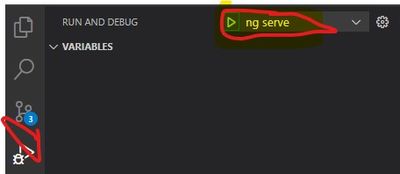

Installation[edit]
AWS Toolkit Extension[edit]
installed 'AWS Toolkit' via side menu 'extensions' 
Chrome Debugger[edit]
- installed Debugger for Chrome via side menu 'extensions'

Operation[edit]
Command Palette[edit]
- CTRL+ SHIFT + P
(Un-)Comment Block[edit]
- CTRL+K+C/U
Extension Installation Window[edit]
- CTRL + SHIFT + X
Add Project to Workspace Window[edit]
- right click in empty part of Workspace window -> Add folder to Workspace
Open Angular Project[edit]
cd <ROOT_FOLDER>
code .
Select Python Interpreter[edit]
CRTL + SHIFT + P
Working with Python Virtual Environments[edit]
see here
Format a JSON File[edit]
- SHIFT + ALT + F
Compare Files[edit]
- Open the Command Palette by Ctrl + Shift + P
- type 'compare active file with'
- select