
MSPowerBI: Difference between revisions
| Line 13: | Line 13: | ||
==Ressources== | ==Ressources== | ||
* [https://www.youtube.com/watch?v=AuYzsfXKkbM Beginners Tutorial] | * [https://www.youtube.com/watch?v=AuYzsfXKkbM Beginners Tutorial] | ||
* [https://k21academy.com/microsoft-azure/data-analyst/power-bi-transform-data/ examples for data manipulation at import] | |||
* [https://ssbi-blog.de/blog/business-topics/wie-du-unregelmaessige-hierarchien-in-power-bi-und-power-pivot-nutzen-solltest/ irregular hierachies e.g. for org model] | * [https://ssbi-blog.de/blog/business-topics/wie-du-unregelmaessige-hierarchien-in-power-bi-und-power-pivot-nutzen-solltest/ irregular hierachies e.g. for org model] | ||
Revision as of 08:18, 27 February 2022
Information
- extension for local saves is *.pbix
Concepts
- There are three different options on how your data should be treated: Import, DirectQuery, or Live Connection. This section will focus specifically on the Import option.
Views

- Report View (Berichtsansicht)
- Data View (Datenansicht)
- Relationship View (Beziehungsansicht)

Ressources
Operation
Import Data from Excel
General Information
Power Query Editor always works with a preview of the data, to make the development process fast. When you load the data in Power BI, transformations will be applied on the entire dataset. Hence errors might have not been identified before the full import of data.
Steps
- select import and file
- select transform (not load)
- delete rows above headers (e.g. filter sums) by
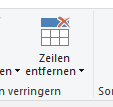
- set first row as header line by

- delete columns not needed by right click -> delete


N charactors from left
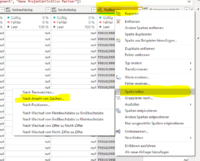
- next step delete the rows to the right
- rename column to the original name (w/o .1 suffix)

Adjust Query

Error Handling
Export Data to Excel
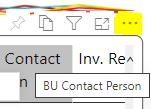
- move or right click in header
- select dots
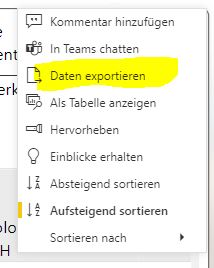
- select export data


Visuals
Slicer

- Selection Behavior
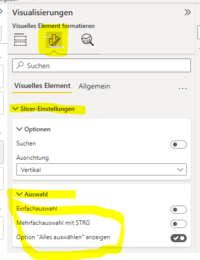


English/German
| Slicer | Datenschnitt |
| E1 | G1 |
| E2 | G2 |