
AWSLinux4Magento
Purpose
A machine big enough to run a Magento 2 shop and enable remote debugging.
Creation
- AWS Console -> EC2 -> Instances -> Launch Instance
- Select in AWS Marketplace 'Magento Certified by Bitnami | 2.3.3-4 on Ubuntu 16.04 | 64-bit (x86) Amazon Machine Image (AMI) | Updated: 11/14/19 (see here)'
- select t2.large
- add 20 GB with name /dev/sda1/
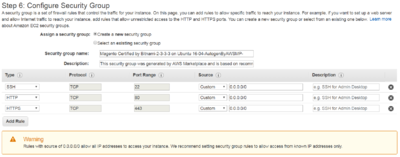
- select security group 'Magento Certified by Bitnami ....'
- copied creation system log file from AWS Console -> Select Instance -> Instance Settings -> Get System Log in C:\Uwes\owncloud\documents\computer\AWSMediumLinux4Magento\CreationSystemLog.txt

The installation process will create several sub-directories under the /opt/bitnami directory:
- Servers and related tools:
apache2/, mysql/, postgresql/, apache-tomcat/, etc. - Languages:
php/, python/, ruby/, tcl/, etc. - Application files:
apps/phpMyAdmin/, apps/drupal/, apps/joomla/, apps/redmine/, etc. - Common libraries:
common/ - Licenses of the components included in the stack:
licenses/ - Configuration file for the Apache Web server:
/opt/bitnami/apps/APPNAME/conf/
General Data
- Key Pairs: LinuxMedium4Magento (local ppk file in C:\Uwes\owncloud\documents\computer\AWSMediumLinux4Magento\)
- Availabity zone: us-west-2a
- General Password from system.log OcGHZBu6Bt0R
- users and its groups:
- root - root
- bitnami - bitnami, bitnami-admins, sudo, .... (see groups command)
- ubuntu - bitnami, bitnami-admins
- Putty configuratino: MediumLinux4Magento
- Instance ID i-03c59ca379643f8e8
Bitnami AMI Documentation
ToDos
Applications
General
sudo /opt/bitnami/ctlscript.sh status // overview of all Bitnami services
sudo /opt/bitnami/ctlscript.sh start // start all Bitnami services
sudo /opt/bitnami/ctlscript.sh stop // stop all Bitnami services
sudo /opt/bitnami/ctlscript.sh restart // restart all Bitnami services
Apache
httpd -v
Server version: Apache/2.4.41 (Unix)
sudo /opt/bitnami/ctlscript.sh restart apache // restart Apache
- web pages directory
/opt/bitnami/apache2/htdocs/
Log Files
- /opt/bitnami/apache2/logs/access.log
- /opt/bitnami/apache2/logs/error.log
Configuration
- see also here
/opt/bitnami/apache2/conf/bitnami/bitnami.conf
 includes /opt/bitnami/apache2/conf/bitnami/bitnami-apps-prefix.conf
   includes /opt/bitnami/apps/phpmyadmin/conf/httpd-prefix.conf
   includes /opt/bitnami/apps/magento/conf/httpd-prefix.conf
     rewrite ...
     includes /opt/bitnami/apps/magento/conf/httpd-app.conf
Magento
Configuration
Because standard admin user 'user' did not work created an additional admin user by command line (use of magento-cli instead of magento was forced by bitnami):
sudo bin/magento-cli admin:user:create --admin-user=admin --admin-password=mHalloo0@1m
admin@email.com
adminfirst
adminlast
Set admin session timeout by Stores -> Settings -> Configuration -> Advanced-> Admin -> Security -> Admin Session Lifetime
MySQL
Version
- inital
mysqld --version
/opt/bitnami/mysql/bin/mysqld.bin  Ver 8.0.18 for linux-glibc2.12 on x86_64 (MySQL Community Server - GPL)
Logon
mysql -u root -p
favmRC7s6yZx
PHP
- configuration file in
/opt/bitnami/php/etc/php.ini
php -v
PHP 7.2.24 (cli) (built: Nov  8 2019 13:59:42) ( NTS )
Zend Engine v3.2.0, Copyright (c) 1998-2018 Zend Technologies with Zend OPcache v7.2.24, Copyright (c) 1999-2018, by Zend Technologies
Debugging
- here
- decomment XDebug section in configuration file php.ini (see above) and restart Apache
sudo /opt/bitnami/ctlscript.sh restart apache
sudo /opt/bitnami/ctlscript.sh restart php-fpm
- enable debugging according to here
PHPMyAdmin
- enable remote access (and not by recommended SSH tunnel) by editing (see UH marker)
/opt/bitnami/varnish/etc/varnish/magento.vcl
/opt/bitnami/apps/phpmyadmin/conf/httpd-app.conf
SSH
enable password login via SSH
- set password for user
sudo passwd ubuntu
aHalloo0@1a
- change in /etc/ssh/sshd_config
PasswordAuthentication yes
- restart service
sudo service ssh restart
give user ubuntu root priviledges
sudo usermod -G root ubuntu // by adding user ubuntu to group root
map to windows directory
- on windows pc map network drive with to start a root on server
\\sshfs\ubuntu@<SERVER_NAME>/../..
- or in command line (not tested yet)
net use Z: \\sshfs\ubuntu@<SERVER_NAME>\..\..
Varnish
- restart by
sudo /opt/bitnami/ctlscript.sh restart varnish