
EDTLaptop1: Difference between revisions
(→MySQL) |
|||
| (41 intermediate revisions by the same user not shown) | |||
| Line 47: | Line 47: | ||
===Angular Material=== | ===Angular Material=== | ||
* see [[Angular_Material|here]] | * see [[Angular_Material|here]] | ||
===AWS Command Line Interface (AWS CLI)=== | |||
* [https://docs.aws.amazon.com/cli/latest/userguide/getting-started-install.html Installation Instructions and Download] | |||
* installed to C:\Uwes\Programme\Amazon\AWSCLIV2\ | |||
* check by | |||
aws --version | |||
===AWS eksctl=== | |||
* [https://eksctl.io/introduction/ install] eksctl via scoop | |||
eksctl version | |||
===Beyond Compare=== | ===Beyond Compare=== | ||
| Line 54: | Line 64: | ||
* configured in Outlook | * configured in Outlook | ||
===Curl=== | ===[[Curl|Curl]]=== | ||
* unzipped to <code>C:\Uwes\Programme\curl\curl-7.76.1-win64-mingw</code> | * unzipped to <code>C:\Uwes\Programme\curl\curl-7.76.1-win64-mingw</code> | ||
===Docker=== | |||
* install Docker Desktop for Windows 4.3.2 | |||
** asked for installation of Updatepaket für den WSL2-Linux-Kernel für x64-Computer | |||
* now docker deskop app can be started | |||
* in Powershell docker commands | |||
docker version | |||
docker run hello-world | |||
===eclipse=== | ===eclipse=== | ||
| Line 71: | Line 89: | ||
git --version | git --version | ||
git version 2.27.0.windows.1 | git version 2.27.0.windows.1 | ||
===GitHub Cli=== | |||
* downloaded from [https://cli.github.com/ here] | |||
* installed to C:\Uwes\Programme\GitHub CLI\ | |||
===Heroku=== | |||
* downlaod 64bit Windows installer | |||
===JDK=== | ===JDK=== | ||
| Line 101: | Line 126: | ||
* powershell to start XAMPP-Control Center has to be run as admin | * powershell to start XAMPP-Control Center has to be run as admin | ||
* edit DB password in <code>C:\Uwes\Programme\xampp7.2.27\htdocs\magento234\app\etc\env.php</code> | * edit DB password in <code>C:\Uwes\Programme\xampp7.2.27\htdocs\magento234\app\etc\env.php</code> | ||
===Maven=== | |||
* downlaod apache-maven-3.8.5-bin.zip | |||
* extract to <code>C:\Uwes\Programme\apache-maven-3.8.5\</code> | |||
* add to system path <code>C:\Uwes\Programme\apache-maven-3.8.5\bin</code> | |||
===MP3 Tag=== | ===MP3 Tag=== | ||
| Line 108: | Line 138: | ||
* create directory <code>C:\Users\U1728\AppData\Roaming\Microsoft\Teams\Backgrounds\Uploads\</code> and put pictures here | * create directory <code>C:\Users\U1728\AppData\Roaming\Microsoft\Teams\Backgrounds\Uploads\</code> and put pictures here | ||
* free background pictures https://pixabay.com/de/videos/search/hintergr%C3%BCnde/?pagi=3 | * free background pictures https://pixabay.com/de/videos/search/hintergr%C3%BCnde/?pagi=3 | ||
===JQ=== | |||
* download 64-bit Windows executable to C:\Uwes\Programme\jq | |||
* rename it to jq.exe | |||
* add path to environment variables of U1728 | |||
===Kindle=== | ===Kindle=== | ||
| Line 129: | Line 164: | ||
* take activation key from <code>C:\Uwes\owncloud\documents\Applications\PHPStorm\WendwebPHPStormActiviationKey.txt</code> | * take activation key from <code>C:\Uwes\owncloud\documents\Applications\PHPStorm\WendwebPHPStormActiviationKey.txt</code> | ||
===Postgres=== | ===[[Postgres|Postgres]]=== | ||
* from https://www.enterprisedb.com/downloads/postgres-postgresql-downloads to C:\Uwes\Programme\ | * from https://www.enterprisedb.com/downloads/postgres-postgresql-downloads to C:\Uwes\Programme\ | ||
* led to error [[File:PostgresInstallationError.PNG|thumb]] | * led to error [[File:PostgresInstallationError.PNG|thumb]] | ||
* after Googling this seems to work | |||
* after Googling this seems to work, but did not | |||
C:\Uwes\Programme\PostgreSQL\12\bin>initdb.exe -D "C:\Uwes\Programme\PostgreSQL\12\data" | C:\Uwes\Programme\PostgreSQL\12\bin>initdb.exe -D "C:\Uwes\Programme\PostgreSQL\12\data" | ||
.\pg_ctl.exe -D "C:\Uwes\Programme\PostgreSQL\12\data" start | .\pg_ctl.exe -D "C:\Uwes\Programme\PostgreSQL\12\data" start | ||
* | * therefore Postgres installation to be used on [[RaspberryPi4B#PostgreS.28QL.29|Raspberry]] remotely | ||
* pgAdmin (master pwd <Lp>Halloo0@1<Lp>) by C:\Uwes\Programme\PostgreSQL\12\pgAdmin 4\bin\pgAdmin4.exe can be used on this Windows computer | |||
===Postman=== | ===Postman=== | ||
* standard installation to <code>C:\Users\U1728\AppData\Local\Postman\Postman.exe</code> | * standard installation to <code>C:\Users\U1728\AppData\Local\Postman\Postman.exe</code> | ||
===Python=== | ===[[Python|Python]]=== | ||
* installation to <code>C:\Uwes\Programme\Python\</code> | * installation by 64-bit installer to <code>C:\Uwes\Programme\Python\Python39\</code> | ||
* installation of pyscopg | |||
pip install psycopg2-binary | |||
* installation of [[Python#Flask|Flask]] | |||
pip install flask | |||
pip install flask-sqlalchemy | |||
* installation of Flask Migrate | |||
pip install Flask-migrate | |||
===[[SpringBoot|Spring Boot CLI]]=== | |||
* download <code>spring-boot-cli-2.6.5-bin.zip</code> | |||
* extract to <code>C:\Uwes\Programme\spring-2.6.5</code> | |||
* add environment variable SPRING_HOME as <ocde>C:\Uwes\Programme\spring-2.6.5</code> | |||
* add <code>C:\Uwes\Programme\spring-2.6.5\bin</code> to path | |||
* test by | |||
spring version | |||
===SSHFS=== | ===SSHFS=== | ||
| Line 169: | Line 221: | ||
* download User Installer from [https://code.visualstudio.com/download here] | * download User Installer from [https://code.visualstudio.com/download here] | ||
* installed to <code>C:\Uwes\Programme\Microsoft VS Code</code> | * installed to <code>C:\Uwes\Programme\Microsoft VS Code</code> | ||
===Wake On Lan (WOL)=== | |||
* C:\Uwes\Programme\WakeOnLan | |||
===Wildfly=== | ===Wildfly=== | ||
| Line 236: | Line 291: | ||
====XAMPP 7.2.27==== | ====XAMPP 7.2.27==== | ||
* download 64 bit version and install via setup to <code>C:\Uwes\Programme\xampp7.2.27</code> | * download 64 bit version and install via setup to <code>C:\Uwes\Programme\xampp7.2.27</code> | ||
* configurations in <code>C:\Uwes\Programme\xampp7.2.27\apache\conf\httpd.conf< | * configurations in <code>C:\Uwes\Programme\xampp7.2.27\apache\conf\httpd.conf</code> | ||
Listen 8090 | Listen 8090 | ||
ServerName localhost:8090 | ServerName localhost:8090 | ||
=====MySQL===== | =====[[MySQL|MySQL]]===== | ||
* change by root password (old was DB user = 'root', DB password = '') by | * change by root password (old was DB user = 'root', DB password = '<EMPTY>') by | ||
C:\Uwes\Programme\xampp7.2.27\mysql\bin>mysqladmin.exe --user=root password "mHalloo0@1m" | C:\Uwes\Programme\xampp7.2.27\mysql\bin>mysqladmin.exe --user=root password "mHalloo0@1m" | ||
* login via | |||
mysql --user=root --password=mHalloo0@1m | |||
=====Operations===== | =====Operations===== | ||
Latest revision as of 10:50, 19 April 2022
Data[edit]
- HP Elitebook 850 G5
Certificates[edit]

- Interface Utility


- Interface Manager


Virtual Smartcard[edit]


If the card is blocked you have to set a new PIN via PKI portal (16891689). You need one colleague which confirms your identity via the PKI portal.
Windows 10[edit]
- delete items in Explorer section 'Dieser PC' by deleting corresponding registry entries below HKEY_LOCAL_MACHINE\SOFTWARE\Microsoft\Windows\CurrentVersion\Explorer\MyComputer\NameSpace (entries have been saved before to *.reg files in
C:\Uwes\Backup\Windows10(see here)
Backup[edit]
Preparation[edit]
- create C:\temp\export\
- create C:\Uwes\Backup\LocalMySQLBackup.bat // exports db files to C:\temp\export\
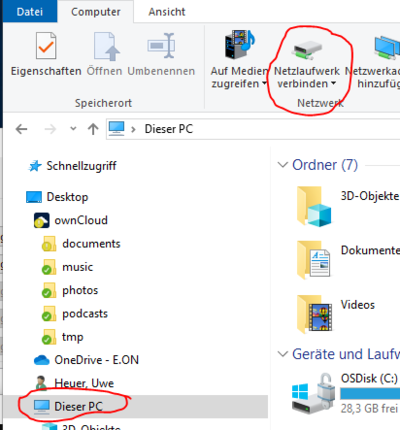
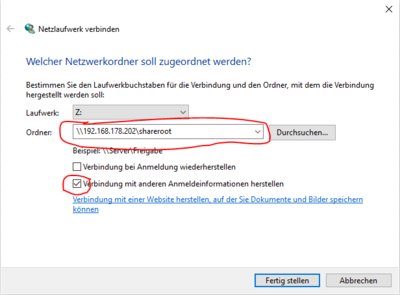
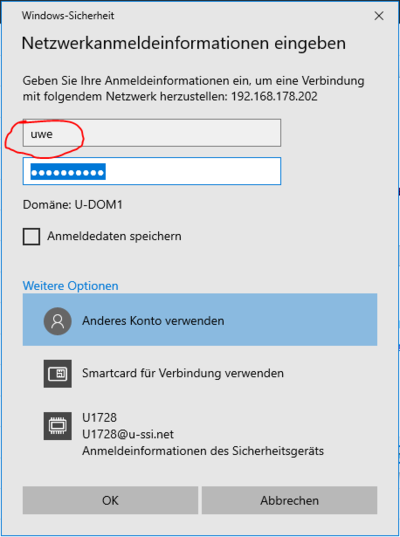
- create C:\Uwes\Backup\LocalBackupFileList.txt
- create C:\Uwes\Backup\LocalBackup.bat


Operation[edit]
Programs[edit]
Angular[edit]
- see here
Angular IDE[edit]
- installed from https://www.genuitec.com/docs/workbench/using-workbench-perspectives/ to C:\Uwes\Programme\Angular IDE
- uses the local angular installation
Angular Material[edit]
- see here
AWS Command Line Interface (AWS CLI)[edit]
- Installation Instructions and Download
- installed to C:\Uwes\Programme\Amazon\AWSCLIV2\
- check by
aws --version
AWS eksctl[edit]
- install eksctl via scoop
eksctl version
Beyond Compare[edit]
- installed 2020-12-27 30-days trial version
CalDav Synchronizer[edit]
- configured in Outlook
Curl[edit]
- unzipped to
C:\Uwes\Programme\curl\curl-7.76.1-win64-mingw
Docker[edit]
- install Docker Desktop for Windows 4.3.2
- asked for installation of Updatepaket für den WSL2-Linux-Kernel für x64-Computer
- now docker deskop app can be started
- in Powershell docker commands
docker version
docker run hello-world
eclipse[edit]
- download installer from https://www.eclipse.org/
- select 'Eclipse IDE for Enterprise Java Developers'
- create directory C:\Uwe\Uwes\eclipse\2020-12
- create directory C:\Uwes\eclipse\workspace_2020-12
- install via Help -> Eclipse Marketplace -> Spring Tools 4

Git[edit]
- download Git-2.27.0-64-bit.ext from here
- Installed to
C:\Uwes\Programme\Git - PATH variable extended to
C:\Uwes\Programme\Git\cmd\
git --version
git version 2.27.0.windows.1
GitHub Cli[edit]
- downloaded from here
- installed to C:\Uwes\Programme\GitHub CLI\
Heroku[edit]
- downlaod 64bit Windows installer
JDK[edit]
Java 8[edit]
- installed to
C:\Uwes\java\jdk1.8.0_212 - set JAVA_HOME to
C:\Uwes\java\jdk1.8.0_212to be used by Wildfly and javac task in generation for uweheuer app
Java 13[edit]
- new byte code raises problems with Axis
- download JDK 13.0.2 from oracle.com as exe and install it to
C:\Uwes\Java\jdk-13.0.2\
C:\Uwes\java\jdk-13.0.2\bin>java -version
java version "13.0.2" 2020-01-14
Magento[edit]
- download Magento-CE-2.3.4_sample_data-2020-01-22-11-05-42.zip from Magento
- extract to
C:\Uwes\Programme\xampp7.2.27\htdocs\magento234 - create DB 'magento234' by PHPMyAdmin
- start Web Installation by http://localhost:8080/magento234/setup
- in
C:\Uwes\Programme\xampp7.2.27\htdocs\magento234\vendor\magento\framework\View\Element\Template\File\Validator.phpreplace
// $realPath = $this->fileDriver->getRealPath($path);
if (PHP_OS_FAMILY === 'Windows')
  $realPath = str_replace('\\', '/', $this->fileDriver->getRealPath($path));
else
  $realPath = $this->fileDriver->getRealPath($path);
- because of not working links in admin area replace in
C:\Uwes\Programme\xampp7.2.27\htdocs\magento234\app\etc
 // <item name="view_preprocessed" xsi:type="object">Magento\Framework\App\View\Asset\MaterializationStrategy\Symlink</item> with
 <item name="view_preprocessed" xsi:type="object">Magento\Framework\App\View\Asset\MaterializationStrategy\Copy</item>
- powershell to start XAMPP-Control Center has to be run as admin
- edit DB password in
C:\Uwes\Programme\xampp7.2.27\htdocs\magento234\app\etc\env.php
Maven[edit]
- downlaod apache-maven-3.8.5-bin.zip
- extract to
C:\Uwes\Programme\apache-maven-3.8.5\ - add to system path
C:\Uwes\Programme\apache-maven-3.8.5\bin
MP3 Tag[edit]
- C:\Uwes\Programme\MP3Tag\
MS Teams[edit]
- create directory
C:\Users\U1728\AppData\Roaming\Microsoft\Teams\Backgrounds\Uploads\and put pictures here - free background pictures https://pixabay.com/de/videos/search/hintergr%C3%BCnde/?pagi=3
JQ[edit]
- download 64-bit Windows executable to C:\Uwes\Programme\jq
- rename it to jq.exe
- add path to environment variables of U1728
Kindle[edit]
- download and intstallation
NodeJS[edit]
- NodeJS
- download version 12.18.2 LTS from https://nodejs.org/en/
- installation to
C:\Uwes\Programme\nodejs\
Outlook[edit]
- see signature files in
C:\Users\U1728\AppData\Roaming\Microsoft\Signatures - RTF mails
OwnCloud Windows Client[edit]
- installed via github download with uwe.heuer@gmail.com Halloo0@1 to
C:\Uwes\Programme\ownCloud\ - data folder is C:\Uwes\owncloud\
PHPStorm[edit]
- download and install to
C:\Uwes\Programme\JetBrains\ - take activation key from
C:\Uwes\owncloud\documents\Applications\PHPStorm\WendwebPHPStormActiviationKey.txt
Postgres[edit]
- from https://www.enterprisedb.com/downloads/postgres-postgresql-downloads to C:\Uwes\Programme\
- led to error
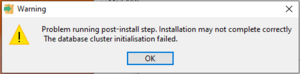

- after Googling this seems to work, but did not
C:\Uwes\Programme\PostgreSQL\12\bin>initdb.exe -D "C:\Uwes\Programme\PostgreSQL\12\data"
.\pg_ctl.exe -D "C:\Uwes\Programme\PostgreSQL\12\data" start
- therefore Postgres installation to be used on Raspberry remotely
- pgAdmin (master pwd <Lp>Halloo0@1<Lp>) by C:\Uwes\Programme\PostgreSQL\12\pgAdmin 4\bin\pgAdmin4.exe can be used on this Windows computer
Postman[edit]
- standard installation to
C:\Users\U1728\AppData\Local\Postman\Postman.exe
Python[edit]
- installation by 64-bit installer to
C:\Uwes\Programme\Python\Python39\ - installation of pyscopg
pip install psycopg2-binary
- installation of Flask
pip install flask
pip install flask-sqlalchemy
- installation of Flask Migrate
pip install Flask-migrate
Spring Boot CLI[edit]
- download
spring-boot-cli-2.6.5-bin.zip - extract to
C:\Uwes\Programme\spring-2.6.5 - add environment variable SPRING_HOME as <ocde>C:\Uwes\Programme\spring-2.6.5
- add
C:\Uwes\Programme\spring-2.6.5\binto path - test by
spring version
SSHFS[edit]
- in order to be able to map a linux directory via SSH install WinFsp and SSHFS-Win according to here
- a drive can be mapped by file manager with e.g.
\\sshfs\ubuntu@ec2-34-219-153-128.us-west-2.compute.amazonaws.com
- or via cmd line with e.g.
net use X: \\sshfs\billziss@mac2018.local
Thunderbird[edit]
- download and installation to C:\Uwes\Programme\
- copied data from old laptop according to here
UweHeuer App[edit]
- create MySQL tables and copy content for productive server by batches
Raspberry*.bat - see also Wildfly Configuration
- call ant target 'deploy_laptop'
UltraEdit[edit]
- installation
Visual Paradigm Community Edition[edit]
- download and install to
C:\Uwes\Programme\Visual Paradigm CE 16.1 - activation via uwe.heuer@eon.com and mail reply with code F9595-7A624-CUBR9-WTVJ5-C35JW
Visual Studio Code[edit]
- download User Installer from here
- installed to
C:\Uwes\Programme\Microsoft VS Code
Wake On Lan (WOL)[edit]
- C:\Uwes\Programme\WakeOnLan
Wildfly[edit]
- download from https://wildfly.org/downloads/ version 18.0.1
- extract to
C:\Uwes\Programme\wildfly-18.0.1.Final - edit
C:\Uwes\Programme\wildfly-18.0.1.Final\standalone\configuration
 // <socket-binding name="http" port="${jboss.http.port:8080}"/>
 <socket-binding name="http" port="${jboss.http.port:8888}"/>
- logging configuration according to logging configuration
MySQL configuration[edit]
- download OS independent mysql-connector-java-8.0.19.zip from here and extract it to
C:\Uwes\java\mysql-connector-java-8.0.19 - install it to Wildfly by dragging jar file to Admin Console -> Deployments
- add Datasource for UweHeuer App by
C:\Uwes\Programme\wildfly-18.0.1.Final\bin\jboss-cli.bat(Admin Console -> Configuration -> Subsystems -> Datasources & Drivers -> Datasources throws a frontend error) (see/uweheuer/src/WEB-INF/classes/META-INF/persistence.xml)
/subsystem=datasources/data-source=MySQLDS:add(jndi-name="java:jboss/datasources/MySQLDS", driver-name="mysql-connector-java-8.0.19.jar",driver-class="com.mysql.cj.jdbc.Driver",user-name="root",password="mHalloo0@1m",connection-url="jdbc:mysql://localhost/mysql505?autoReconnect=true")
/subsystem=datasources/data-source=MySQLDS_QA:add(jndi-name="java:jboss/datasources/MySQLDS_QA", driver-name="mysql-connector-java-8.0.19.jar",driver-class="com.mysql.cj.jdbc.Driver",user-name="root",password="mHalloo0@1m",connection-url="jdbc:mysql://localhost/mysql505_qa?autoReconnect=true")
- add Datasource for UwesWiki
/subsystem=datasources/data-source=UwesWikiDS:add(jndi-name="java:jboss/datasources/UwesWikiDS", driver-name="mysql-connector-java-8.0.19.jar",driver-class="com.mysql.cj.jdbc.Driver",user-name="root",password="mHalloo0@1m",connection-url="jdbc:mysql://localhost/mediawiki")
- this creates entries which can have to be edited in the Admin Console


Operations[edit]
- manual start by (!!! start xampp before !!!)
C:\Uwes\Programme\wildfly-18.0.1.Final\bin\standalone.bat [--debug] // -debug for enabling Java Debugging
- check by Wildfly Home
- manual stop
CTRL+C
WinMerge[edit]
- installed to C:\Uwes\Programme\WinMerge
WinSCP[edit]
- export and import of ini file from
C:\Uwes\owncloud\documents\Applications\WinSCP\2019-07-12_WinSCP.ini
XAMPP[edit]
XAMPP 7.4.2 (obsolete)[edit]
- currently go to 7.2.27, because of Magento incompatibility
- download 64 bit version and install via setup to
C:\Uwes\Programme\xampp\ - installs PHP 7.4.2
- change Apache port according to here
- press 'Config' button of Apache in httpd.conf:
Listen 8080 // replaced Listen 80
ServerName localhost:8080 // ServerName localhost:80
Add PHP to Path[edit]
- Windows 10 set environment variables
- add C:\Uwes\Programme\xampp7.2.27\php
Enable XDebug[edit]
- Download php_xdebug-2.9.1-7.4-vc15-x86_64.dll
- Move the downloaded file to C:\Uwes\Programme\xampp\php\ext
- Edit C:\Uwes\Programme\xampp\php\php.ini C:\WINDOWS\php.ini and add the line
zend_extension = C:\Uwes\Programme\xampp\php\ext\php_xdebug-2.9.1-7.4-vc15-x86_64.dll
- Restart the webserver
- in addition according to here
- install Chrome xdebug helper extension
- add remote_enable in php.ini
XAMPP 7.2.27[edit]
- download 64 bit version and install via setup to
C:\Uwes\Programme\xampp7.2.27 - configurations in
C:\Uwes\Programme\xampp7.2.27\apache\conf\httpd.conf
Listen 8090
ServerName localhost:8090
MySQL[edit]
- change by root password (old was DB user = 'root', DB password = '<EMPTY>') by
C:\Uwes\Programme\xampp7.2.27\mysql\bin>mysqladmin.exe --user=root password "mHalloo0@1m"
- login via
mysql --user=root --password=mHalloo0@1m
Operations[edit]
- start manually with XAMPP control panel
C:\Uwes\Programme\xampp7.2.27\xampp-control.exe
PHPMyAdmin[edit]
- set MySQL password in
C:\Uwes\Programme\xampp7.2.27\phpMyAdmin