
EDTLaptop3: Difference between revisions
| (17 intermediate revisions by the same user not shown) | |||
| Line 5: | Line 5: | ||
==Installations== | ==Installations== | ||
===Anaconda=== | |||
Progs are in: | |||
C:\Users\U1728\AppData\Roaming\Microsoft\Windows\Start Menu\Programs\Anaconda3 (64-bit) | |||
=====Change root for Jupyter==== | |||
* start Anaconda prompt | |||
C:\Users\U1728>jupyter notebook --generate-config | |||
Writing default config to: C:\Users\U1728\.jupyter\jupyter_notebook_config.py | |||
* edit config fily | |||
===Angular=== | ===Angular=== | ||
[[NodeJS#npm|npm]] install -g @angular/cli // -g installs [[Angular#Angular_CLI|Angular CLI]] it globally, not project-specific | [[NodeJS#npm|npm]] install -g @angular/cli // -g installs [[Angular#Angular_CLI|Angular CLI]] it globally, not project-specific | ||
| Line 13: | Line 23: | ||
* extract to <code>C:\Uwes\nervenschoner.chromium\</code> | * extract to <code>C:\Uwes\nervenschoner.chromium\</code> | ||
* installation in Chrome does not work | * installation in Chrome does not work | ||
===[[Docker|Docker]]=== | |||
* installation via Eon service request did not work (INC2441412) | |||
* download docker windows installation via command line (via browser it is blocked) | |||
* execute installer (target directory could not be specified) | |||
* first start led to the error message [[File:DockerInstallationError.png|400px]] | |||
* link executed (but w/o installation of a linux distribution) | |||
* login with Docker desktop with uwe.heuer@eon.com (see old mail with welcome to Eon community) | |||
* Docker Desktop has to be started manually to start the Docker host | |||
===draw.io=== | ===draw.io=== | ||
| Line 20: | Line 39: | ||
* installation to <code>C:\Uwes\Programme\eclipse\jee-2022-09\</code> | * installation to <code>C:\Uwes\Programme\eclipse\jee-2022-09\</code> | ||
* set workspace to <code>C:\Uwes\SoftwareProjects\eclipse-workspace\</code> | * set workspace to <code>C:\Uwes\SoftwareProjects\eclipse-workspace\</code> | ||
* configuration see [[Eclipse#Configuration_of_Version_2022-06_2022-09|here]] | |||
====Lombok==== | ====Lombok==== | ||
| Line 73: | Line 93: | ||
* create folder <code>C:\Uwes\owncloud\</code> for data | * create folder <code>C:\Uwes\owncloud\</code> for data | ||
* setup with server 'https://uweheuer.spdns.de/owncloud/', uwe.heuer@gmail.com and <STANDARD>, and target folder <code>C:\Uwes\owncloud\</code> | * setup with server 'https://uweheuer.spdns.de/owncloud/', uwe.heuer@gmail.com and <STANDARD>, and target folder <code>C:\Uwes\owncloud\</code> | ||
===Postman=== | |||
* installation by CHIP installer somewhere in the Windows system | |||
* login via Google account | |||
===PuTTY=== | |||
* installation to <code>C:\Uwes\Programme\WinSCP\PuTTY\</code> | |||
===Uwe Heuer=== | ===Uwe Heuer=== | ||
| Line 79: | Line 106: | ||
====Uwe Heuer Backend==== | ====Uwe Heuer Backend==== | ||
C:\Uwes\SoftwareProjects\eclipse-workspace>git clone https://github.com/UweHeuer/uweheuer-backend.git | C:\Uwes\SoftwareProjects\eclipse-workspace>git clone https://github.com/UweHeuer/uweheuer-backend.git | ||
* | * and see [[Uweheuerbackend|here]] | ||
===Visual Studio Code=== | ===Visual Studio Code=== | ||
| Line 87: | Line 114: | ||
====Angular Language Service Plug-In==== | ====Angular Language Service Plug-In==== | ||
===WinMerge=== | |||
* download from Chip | |||
* installation to <code>C:\Uwes\Programme\WinMerge\</code> | |||
===WinSCP=== | ===WinSCP=== | ||
| Line 92: | Line 123: | ||
* installation to <code>C:\Uwes\Programme\WinSCP\</code> | * installation to <code>C:\Uwes\Programme\WinSCP\</code> | ||
* in logon screen import <code>C:\Uwes\owncloud\documents\WinSCP\*.ini</code> | * in logon screen import <code>C:\Uwes\owncloud\documents\WinSCP\*.ini</code> | ||
* configure WinMerge as compare tool by [https://articlebin.michaelmilette.com/adding-winmerge-to-winscp-to-compare-local-and-remote-files/ here] [[File:WinSCP_WinMerge1.jpg|400px]] | |||
** select both file and call WinMerge | |||
===Xampp=== | ===Xampp=== | ||
* installation to <code>C:\Uwes\Programme\xampp\</code> | * installation to <code>C:\Uwes\Programme\xampp\</code> | ||
* http://localhost/dashboard/ | |||
====MySQL==== | |||
* due to error [[File:MariaDBErrorWindows11_1.png|400px]] increased in my.ini | |||
innodb_buffer_pool_size=256 | |||
* set root password by | |||
C:\Uwes\Programme\xampp\mysql\bin>mysqladmin.exe -u root password <Lm><STANDARD><Lm> | |||
* and set it in <code>C:\Uwes\Programme\xampp\phpMyAdmin\config.inc</code> | |||
$cfg['Servers'][$i]['password'] | |||
==Configuration== | |||
===Windows 11=== | |||
Latest revision as of 12:16, 13 November 2025
System[edit]
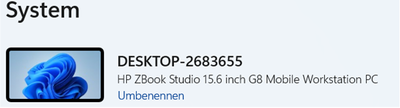
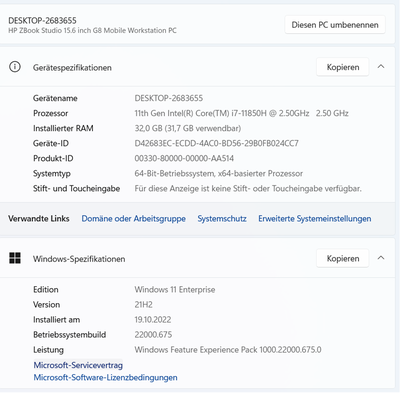
- disc 500GB


Installations[edit]
Anaconda[edit]
Progs are in:
C:\Users\U1728\AppData\Roaming\Microsoft\Windows\Start Menu\Programs\Anaconda3 (64-bit)
=Change root for Jupyter[edit]
- start Anaconda prompt
C:\Users\U1728>jupyter notebook --generate-config
Writing default config to: C:\Users\U1728\.jupyter\jupyter_notebook_config.py
- edit config fily
Angular[edit]
npm install -g @angular/cli // -g installs Angular CLI it globally, not project-specific
ng version // prints version 14.2.8
Chrome Cookie Banner Blocker[edit]
- download from here
- extract to
C:\Uwes\nervenschoner.chromium\ - installation in Chrome does not work
Docker[edit]
- installation via Eon service request did not work (INC2441412)
- download docker windows installation via command line (via browser it is blocked)
- execute installer (target directory could not be specified)
- first start led to the error message
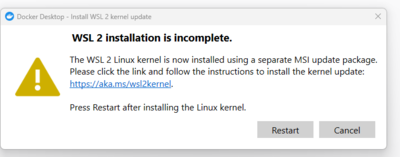
- link executed (but w/o installation of a linux distribution)
- login with Docker desktop with uwe.heuer@eon.com (see old mail with welcome to Eon community)
- Docker Desktop has to be started manually to start the Docker host

draw.io[edit]
- installation to
C:\Uwes\Programme\draw.io\
Eclipse[edit]
- installation to
C:\Uwes\Programme\eclipse\jee-2022-09\ - set workspace to
C:\Uwes\SoftwareProjects\eclipse-workspace\ - configuration see here
Lombok[edit]
- download Lombok from https://search.maven.org/search?q=g:org.projectlombok%20AND%20a:lombok&core=gav
- C:\Users\U1728\.p2\pool\plugins\org.eclipse.justj.openjdk.hotspot.jre.full.win32.x86_64_17.0.5.v20221102-0933\jre\bin\java.exe -jar lombok-1.18.24.jar
- select installation directory of eclipse
Spring Tools[edit]
- eclipse -> Help -> Marketplace -> select Spring Tools 4
Git[edit]
- download from here
- installed to
C:\Uwes\Programme\Git
C:\Uwes\Programme\Git>git --version
  git version 2.38.1.windows.1
git config --global user.email uwe.heuer@gmail.com
git config --global user.name UweHeuer
HTTP Server (node.js)[edit]
C:\Uwes\SoftwareProjects\uweheuer-frontend>npm install --global http-server // install globally
call e.g. by
http-server -p 8082 -c-1 dist/uweheuer-frontend // http://127.0.0.1:8082, -c-1 means no caching
<CTRL>+<C> // to stop
Java[edit]
- use Java runtime from eclipse
- set JAVA_HOME for system to
C:\Users\U1728\.p2\pool\plugins\org.eclipse.justj.openjdk.hotspot.jre.full.win32.x86_64_17.0.5.v20221102-0933\jre
C:\Users\U1728>%JAVA_HOME%\bin\java -version
  openjdk version "17.0.5" 2022-10-18
  OpenJDK Runtime Environment Temurin-17.0.5+8 (build 17.0.5+8)
  OpenJDK 64-Bit Server VM Temurin-17.0.5+8 (build 17.0.5+8, mixed mode)
Maven[edit]
- download apache-maven-3.8.6-bin.zip
- extract to
C:\Uwes\Programme\apache-maven-3.8.6\ - extend system path to
C:\Uwes\Programme\apache-maven-3.8.6\bin
C:\Users\U1728>mvn -version
  Apache Maven 3.8.6 (84538c9988a25aec085021c365c560670ad80f63)
  Maven home: C:\Uwes\Programme\apache-maven-3.8.6
  Java version: 17.0.5, vendor: Eclipse Adoptium, runtime: C:\Users\U1728\.p2\pool\plugins\org.eclipse.justj.openjdk.hotspot.jre.full.win32.x86_64_17.0.5.v20221102-0933\jre
  Default locale: de_DE, platform encoding: Cp1252
  OS name: "windows 11", version: "10.0", arch: "amd64", family: "windows"
Node.js (NPM)[edit]
- download 18.12.0 LTO from here
- installation to
C:\Uwes\Programme\nodejs\
node -v // prints v18.12.0
npm -v // prints 8.19.2
OwnCloud[edit]
- download client from https://owncloud.com/de/desktop-app/
- installation to
C:\Uwes\Programme\owncloud\ - create folder
C:\Uwes\owncloud\for data - setup with server 'https://uweheuer.spdns.de/owncloud/', uwe.heuer@gmail.com and <STANDARD>, and target folder
C:\Uwes\owncloud\
Postman[edit]
- installation by CHIP installer somewhere in the Windows system
- login via Google account
PuTTY[edit]
- installation to
C:\Uwes\Programme\WinSCP\PuTTY\
Uwe Heuer[edit]
Uwe Heuer Frontend[edit]
C:\Uwes\SoftwareProjects>git clone https://github.com/UweHeuer/uweheuer-frontend.git // creates directory uweheuer-frontend
Uwe Heuer Backend[edit]
C:\Uwes\SoftwareProjects\eclipse-workspace>git clone https://github.com/UweHeuer/uweheuer-backend.git
- and see here
Visual Studio Code[edit]
- download User Installer
- installation to
C:\Users\U1728\AppData\Local\Programs\Microsoft VS Code\
Angular Language Service Plug-In[edit]
WinMerge[edit]
- download from Chip
- installation to
C:\Uwes\Programme\WinMerge\
WinSCP[edit]
- download from https://winscp.net/download/WinSCP-5.21-Setup.exe
- installation to
C:\Uwes\Programme\WinSCP\ - in logon screen import
C:\Uwes\owncloud\documents\WinSCP\*.ini - configure WinMerge as compare tool by here
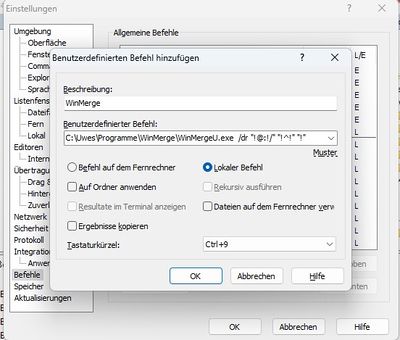
- select both file and call WinMerge

Xampp[edit]
- installation to
C:\Uwes\Programme\xampp\ - http://localhost/dashboard/
MySQL[edit]
- due to error
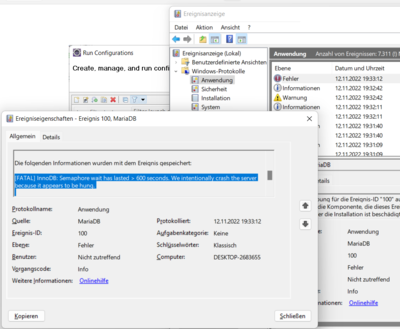 increased in my.ini

innodb_buffer_pool_size=256
- set root password by
C:\Uwes\Programme\xampp\mysql\bin>mysqladmin.exe -u root password <Lm><STANDARD><Lm>
- and set it in
C:\Uwes\Programme\xampp\phpMyAdmin\config.inc
$cfg['Servers'][$i]['password']